Want the complete guide?

The full guide, every other guide, the AI agents I use and live calls are going inside my community. Join the waitlist for the founding-member price.

Join the waitlist →
your free guide

Build your LinkedIn profile with AI: connect Scout to Claude and let it write every section

Your LinkedIn profile is the first thing a recruiter checks. Mine was a mess. Someone hacked it and filled it with jobs I never had, at Boeing and Lockheed, and a university I never went to. And I hadn't really updated it in years, because writing your own profile is a chore nobody wants.

So I had AI build the whole thing. I connected a tool called Scout to Claude, gave it my resume, and pressed one button. A team of AI agents wrote every section of my profile, checked every line against what's actually true about me, and handed it back ready to paste.

This guide walks you through building your LinkedIn profile the same way, section by section: headline, About, experience, Skills and Featured. It works whether you're fixing an old profile or creating one from scratch.

How it works, honestly: Scout writes everything, and you paste it into LinkedIn yourself. Scout never logs into LinkedIn or posts for you, because LinkedIn bans automated activity and your account is worth protecting. Pasting each section takes a minute.

1

Step 1: Connect Scout to Claude (5 minutes)

Five minutes of setup, once. After this, Scout lives inside Claude and knows you.

  1. Go to scoutjob.ai and click Start free. Your CareerID (the profile Scout builds about you) is free, and the paid tools come with a 7-day trial, no card needed.
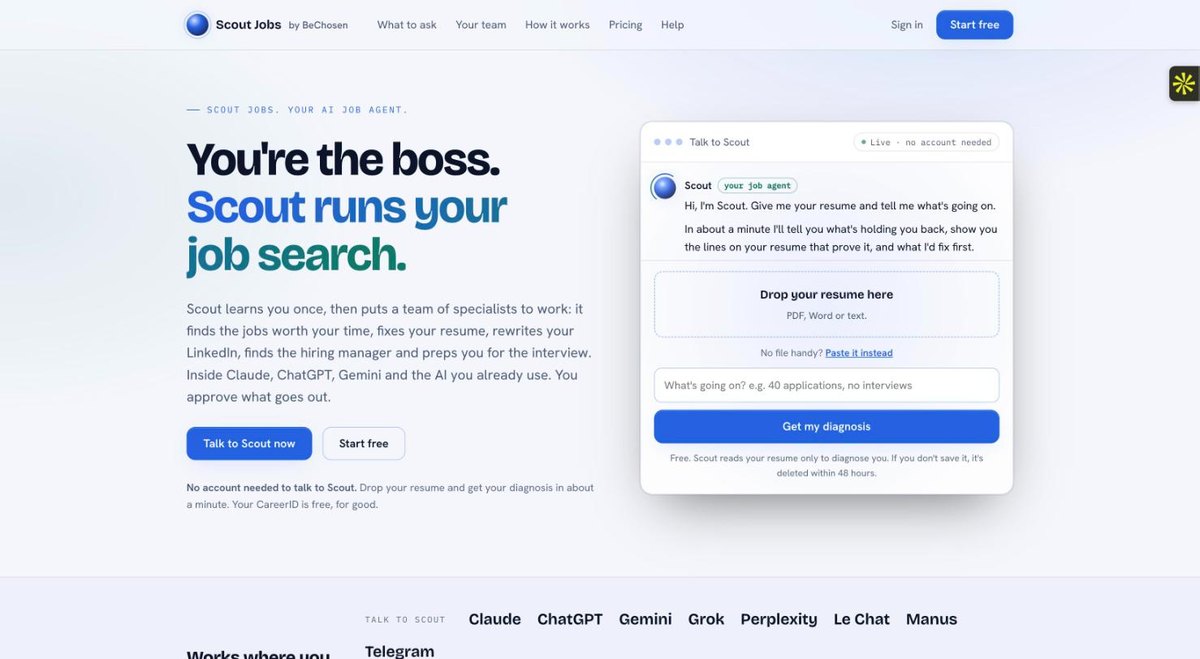
The scoutjob.ai home page with the Start free button
  1. In Claude, click Customize in the left sidebar, then Connectors. Click Add, then Add custom connector.
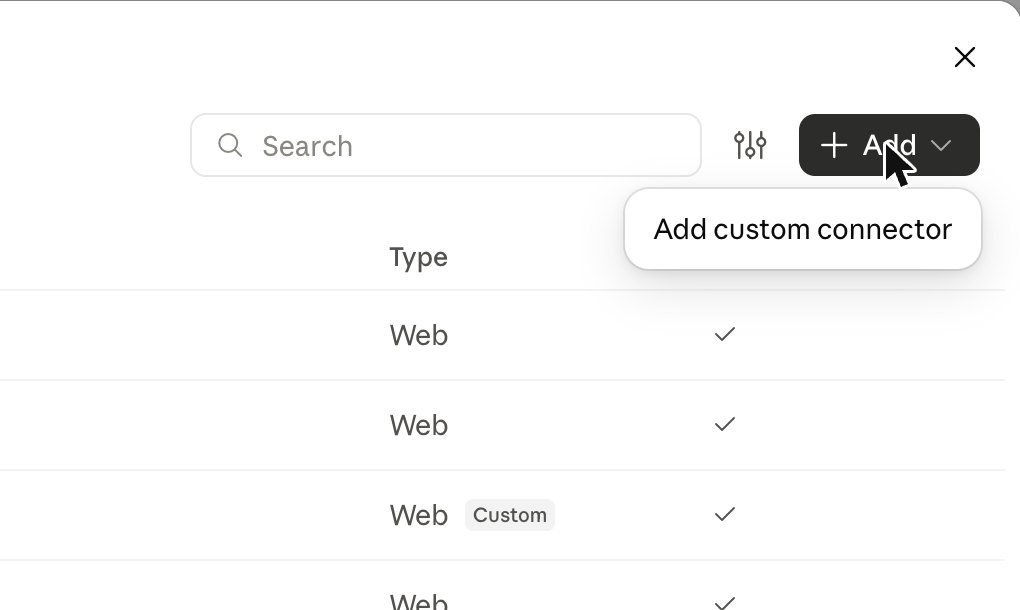
The Add menu in Claude's connectors showing Add custom connector
  1. Name it Scout Jobs and paste this URL, then click Continue. Sign in with your BeChosen account and tap Allow.
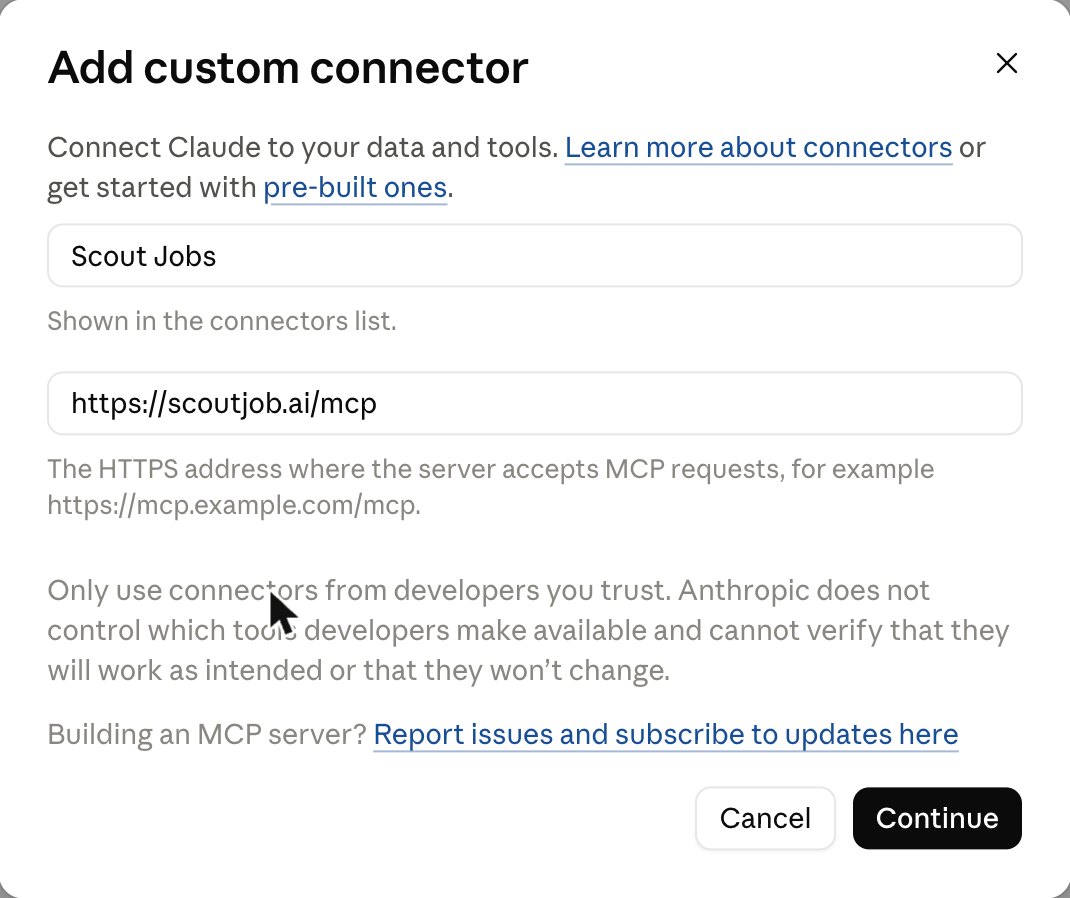
Paste this URLhttps://scoutjob.ai/mcp
The Add custom connector form filled in with Scout Jobs and https://scoutjob.ai/mcp
  1. Open Scout in your connectors list and set Tool permissions to Always allow, so Scout can work without stopping to ask at every step. Anything that sends, applies, publishes or charges money still needs your own tap.
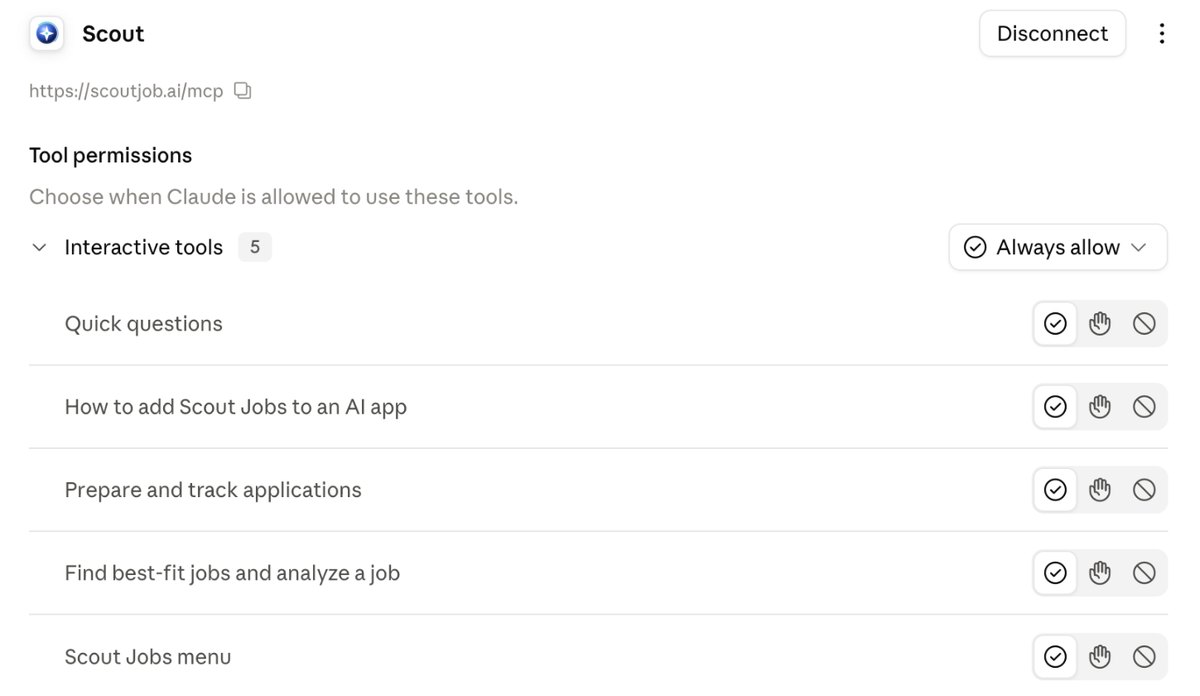
Scout's tool permissions in Claude set to Always allow

Custom connectors depend on your Claude plan. If you don't see Add custom connector, check Claude's help page on custom connectors.

2

Step 2: Give Scout your resume

Your profile can only be as good as what Scout knows about you. Open a new chat in Claude and attach:

  • Your resume (PDF or Word).
  • Your current LinkedIn profile as a PDF, if you have one. On LinkedIn, open your profile, click Resources (or More), then Save to PDF. No profile yet? Skip it.
Copy this inHi Scout. Here's my resume and my LinkedIn profile as a PDF. Get to know me and build my CareerID. I want my LinkedIn profile to get me found for [the role or kind of role you want next].

Scout builds your CareerID: what you've done, the results you got, and what's actually true about you. Every line of your new profile gets checked against it. That's how the fake Boeing and Lockheed jobs on my profile got caught: they weren't in my CareerID, so Scout flagged them instead of keeping them.

3

Step 3: Press the one button

Ask Scout for the menu, then under Prepare your materials tap Recruiters find me on LinkedIn.
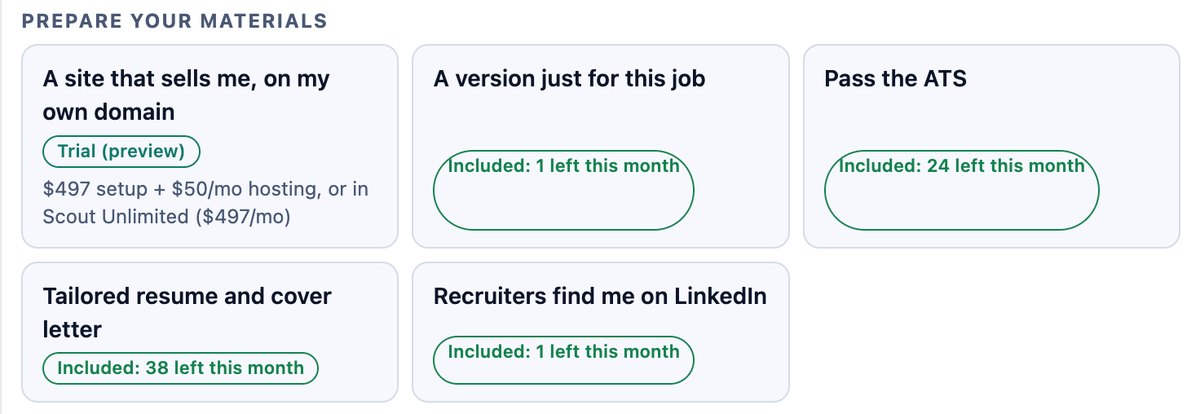
Copy this inScout, show me the menu
The Recruiters find me on LinkedIn button in Scout's menu

(Or just type Start: Recruiters find me on LinkedIn.)

Behind that one button, a team of AI agents builds your profile:

  • Role Analyst pulls the words recruiters actually search for in the jobs you want.
  • Profile Auditor checks your current profile against those jobs before changing anything.
  • Positioner decides who your profile says you are, in one clear line.
  • Profile Writer writes your headline, About, experience, Featured and Skills.
  • Claim Checker checks every line against your CareerID, so nothing untrue gets in.
  • Activity Planner plans 4 weeks of posts that show what you know.

You get every section back, ready to paste. The next steps take them one at a time.

4

Step 4: Your headline

The headline is the line under your name. It shows up in search results, in comments and on every message you send, so it does more work than any other part of your profile. A good one says who you help or what you do, with the words recruiters search for. Not just your job title.

Copy this inScout, give me 5 LinkedIn headline options for [the role you want], using the words recruiters search for. Under 220 characters each.

Where it goes on LinkedIn: your profile, click the pencil next to your name. The headline is the field under your name. Paste it, then click Save.

5

Step 5: Your About section

Your About section is where a recruiter decides whether to keep reading. It should sound like you talking: what you do, the results you've gotten, and what you want next. Scout writes it from your CareerID, so every claim in it is true.

Copy this inScout, rewrite my About section the way I talk. Here's a sentence or two I'd actually say: [paste one or two sentences].

Where it goes on LinkedIn: on your profile, find the About section and click the pencil (or Add profile section, then About, if you don't have one). Paste it and click Save.

6

Step 6: Your experience

Each job should show results, not duties. Scout rewrites every role around what you got done, using the proof from your CareerID.

Copy this inScout, for each job in my experience, give me the title, company, dates and 3 to 5 lines that lead with results. Flag anything on my current profile that isn't in my CareerID.

Where it goes on LinkedIn: in the Experience section, click the pencil on each job and paste the new description. If Scout flagged a job you never had (like the ones on my hacked profile), delete it. If a job is missing, click the + to add it.

If your profile was tampered with like mine, also change your LinkedIn password and turn on two-step verification.

7

Step 7: Your Skills and Featured

Skills: recruiters filter by them. Scout picks the ones that match your target jobs, in the words recruiters use.

Copy this inScout, list the 15 LinkedIn skills I should have for [the role you want], most important first, and tell me which 3 to pin at the top.

Where it goes on LinkedIn: in the Skills section, click the + to add each skill. Remove the ones that don't fit what you want next.

Featured: the proof a recruiter sees first. A project, a result, an article, a site. Scout suggests what to put there and writes the description for each item.

Copy this inScout, what should go in my LinkedIn Featured section, and write a one-line description for each.

Where it goes on LinkedIn: Add profile section, then Recommended, then Add featured. Add each link or file and paste the description.

8

Step 8: Get seen, and keep it current

A finished profile gets you found. Activity gets you remembered. Scout's Activity Planner drafts 4 weeks of posts that show what you know, and the Outreach Writer drafts endorsement asks for people you've worked with. You post and send them yourself.

Copy this inScout, give me my first week of LinkedIn posts from the 4-week plan, ready to copy.

When something changes (a new project, a result, a certification, a new job), tell Scout in one line and it keeps your CareerID current. Then press Recruiters find me on LinkedIn again any time you want your profile refreshed.

Copy this inScout, here's what happened today: [new project, new result, new certification, new role].
the rest of this guide is inside the community

Unlock the full guide

  • My before and after LinkedIn profile, section by section
  • The exact prompts I used to make it sound like me
  • How I'm using Scout for the rest of the job search
  • First access to new Scout tools as they come out

Get this guide in full, every other guide, the AI agents I use, and live calls, inside my community.
Founding members: $47 first month, then $97/month.
Join the waitlist

keep going

More free guides

Cover of Meet Scout's AI Team
AI agentsGetting startedClaude + Scout

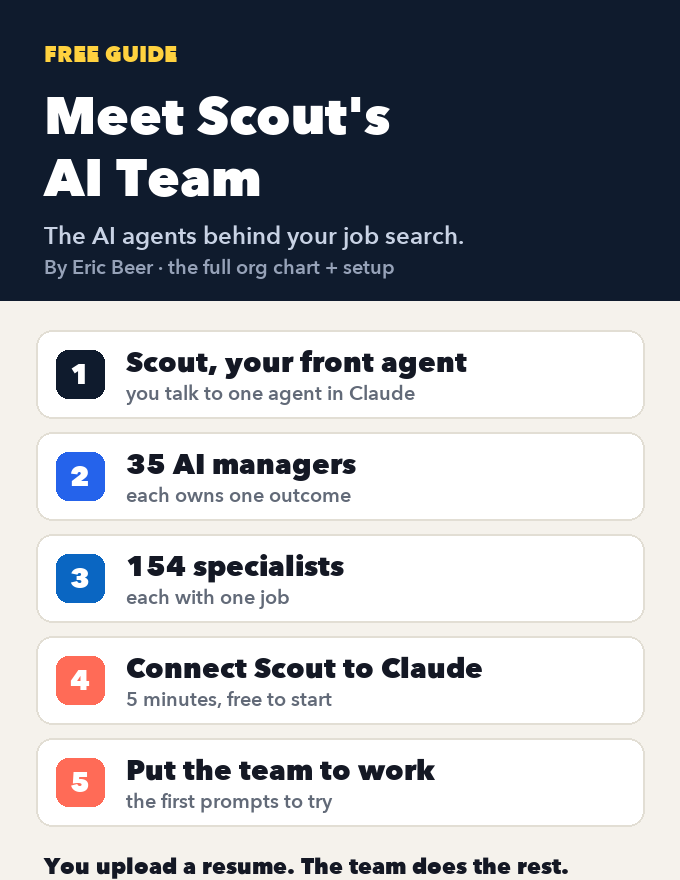
Meet Scout's AI team: the org chart of AI agents that runs a job search, and how to connect it to Claude

See every agent behind Scout Jobs: Scout at the top, 35 AI managers that each own one outcome, and the 154 specialists who do the work, each with one job. Then connect Scout to Claude, step by step, and put the team to work on your job search.

Get the guide →
Cover of Your AI Job Agent: Scout + Claude
AI agentsGetting startedClaude + Scout

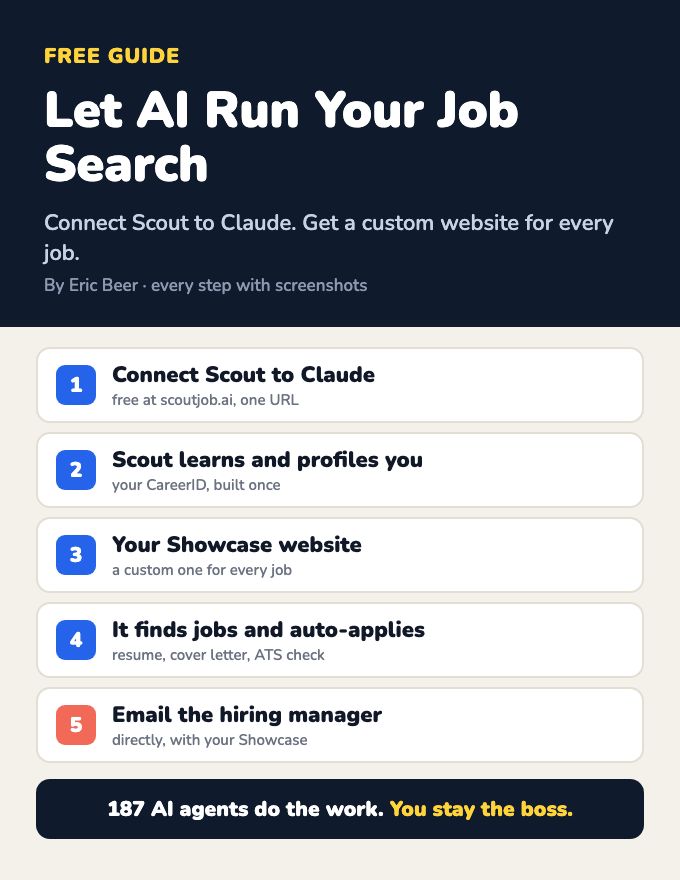
Let AI run your job search: connect Scout to Claude and get a custom website for every job

Connect Scout to Claude and a team of AI agents learns who you are, builds your CareerID and a Showcase website, finds jobs, makes a custom Showcase for each one, applies, and emails the hiring manager. Every step, with screenshots.

Get the guide →
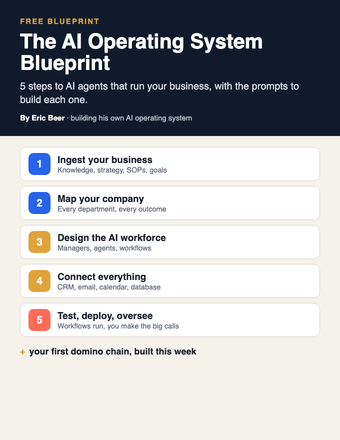
Cover of The AI Operating System Blueprint
AI agentsGetting startedClaude / ChatGPT

The AI Operating System Blueprint: 5 steps to AI agents that run your business

Ingest your business, map the company, design the AI workforce, connect your tools, then test and deploy. The 5 steps, with the prompts for each.

Get the guide →
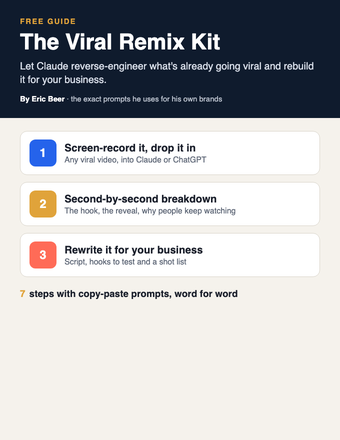
Cover of The Viral Remix Kit
PromptsGetting startedClaude / ChatGPT

The Viral Remix Kit: turn any viral video into one for your business with Claude

Stop coming up with content ideas from scratch. Have Claude reverse-engineer a video that's already going viral and rebuild it for your business.

Get the guide →
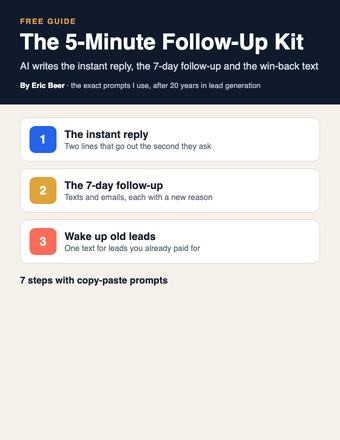
Cover of The 5-Minute Follow-Up Kit
PromptsGetting startedClaude / ChatGPT

The 5-Minute Follow-Up Kit: let AI write every follow-up so no lead goes cold

Whoever answers first usually wins. Have Claude write your instant reply, your 7-day follow-up and the win-back text for old leads, then load them into your CRM once.

Get the guide →
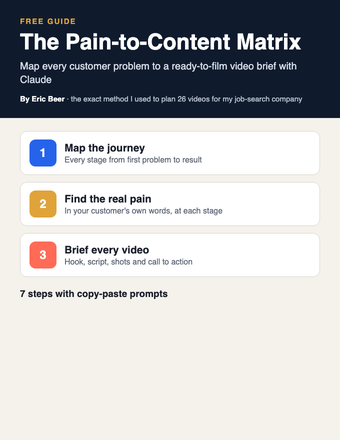
Cover of The Pain-to-Content Matrix
PromptsGetting startedClaude / ChatGPT

The Pain-to-Content Matrix: map every customer problem to a video brief with Claude

Stop guessing what to post. Have Claude map every stage of your customer's journey, the pain at each one, and a ready-to-film video brief for every pain.

Get the guide →
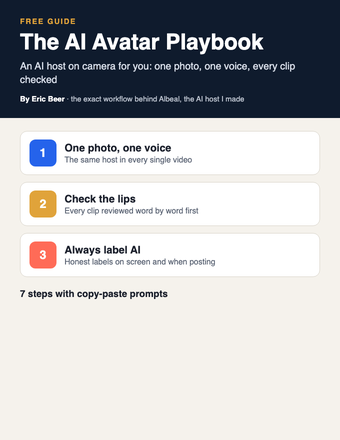
Cover of The AI Avatar Playbook
PromptsGetting startedClaude / ChatGPT + an AI video tool

The AI Avatar Playbook: put an AI host on camera for your business, the honest way

Stop filming every video yourself. Build an AI host with one photo and one voice, have Claude write the scripts, check the lips word by word and always label it AI.

Get the guide →
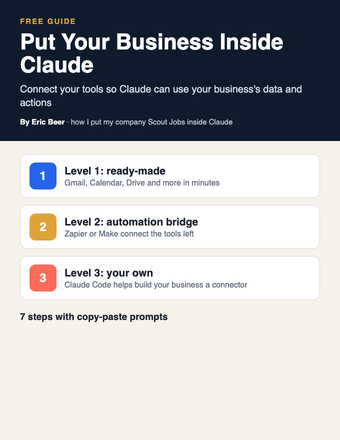
Cover of Put Your Business Inside Claude
AI agentsGetting startedClaude / Claude Code

Put Your Business Inside Claude: connect your tools and data so Claude can work in your business

My company Scout Jobs runs inside Claude as a connector. Here's how to connect your own tools in three levels, from one-click connectors to building your own with Claude Code.

Get the guide →
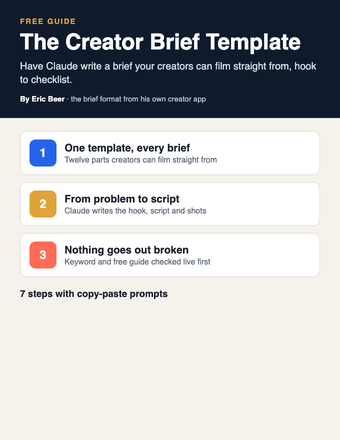
Cover of The Creator Brief Template
PromptsGetting startedClaude / ChatGPT

The Creator Brief Template: have Claude write a filmable brief for every creator and team member

Stop writing every script yourself. Have Claude turn one customer problem into a full brief your creators can film straight from, then check it before it goes out.

Get the guide →
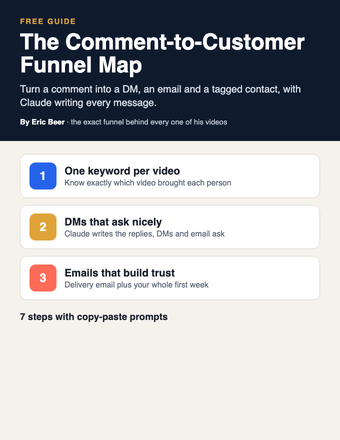
Cover of The Comment-to-Customer Funnel Map
PromptsGetting startedClaude / ChatGPT

The Comment-to-Customer Funnel Map: turn every video comment into an email subscriber with Claude

Turn comments into customers. Map the full path from comment keyword to DM, email, tag and daily email, with Claude writing every message.

Get the guide →
Cover of The SOP-to-Agent Kit
AI agentsPromptsClaude / ChatGPT

The SOP-to-Agent Kit: turn one written process into an AI agent that does the job your way

Stop being the bottleneck. Have Claude turn one of your processes into an agent in a Claude Project, test it, and fix it until it does the job your way.

Get the guide →
Cover of The Business Brain
Getting startedPromptsClaude / ChatGPT

The Business Brain: have Claude interview you and write the one document that teaches AI your business

Stop getting generic answers. Let Claude interview you, write one document about your business, and put it in a Project so every chat knows your business.

Get the guide →
Cover of Build Your Site With Claude
Getting startedPromptsClaude / Claude Code

Build Your Site With Claude: plan, write, build and publish your business website with AI

Stop paying someone every time your site needs a change. Decide the one job your site has, then have Claude plan, write and build it, connect the form to your CRM and put it live.

Get the guide →
Cover of The AI Chief of Staff Setup
AI agentsGetting startedClaude / ChatGPT

The AI Chief of Staff Setup: let Claude answer your team's simple emails and only bring you what needs you

Stop answering every team email yourself. Start with a read-only morning brief, move to drafts you approve, and add one-line alerts for anything only you can decide.

Get the guide →
Cover of The AI Webinar Builder
PromptsGetting startedClaude / ChatGPT

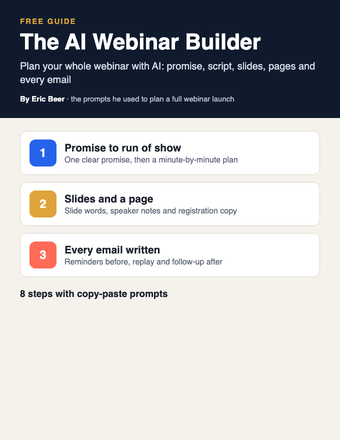
The AI Webinar Builder: plan your whole webinar with Claude, from the promise to the follow-up emails

Stop building webinars by hand. Use Claude to write the promise, the run of show, the slides, the registration page and every email, one piece at a time.

Get the guide →
Cover of The AI Email Kit
PromptsGetting startedClaude / ChatGPT

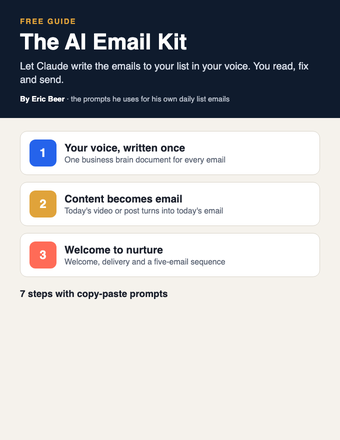
The AI Email Kit: have Claude write the emails to your list in your voice

Stop writing every email to your list yourself. Give Claude your voice once, then turn each video or post into an email and set up your welcome and follow-up emails.

Get the guide →
Cover of The AI Company Blueprint
AI agentsGetting startedClaude / ChatGPT / Claude Code

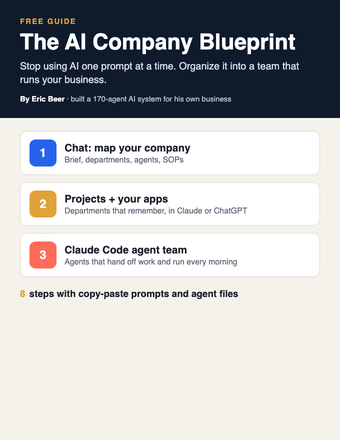
The AI Company Blueprint: organize AI into a team that runs your business

Stop using AI one prompt at a time. Map your company, write SOPs your agents follow, and build the team in Claude, ChatGPT or Claude Code.

Get the guide →
Cover of Your AI Org Chart
AI agentsGetting startedClaude / ChatGPT

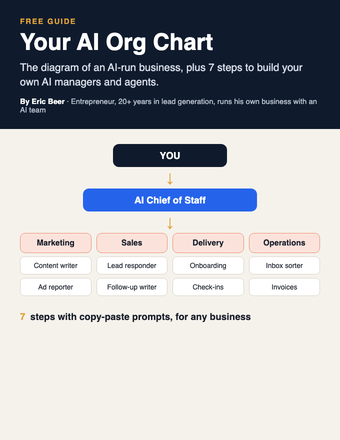
Your AI Org Chart: the diagram, and how to build it for any business

The diagram of an AI-run business, plus 7 steps with copy-paste prompts to build your own AI managers and agents.

Get the guide →
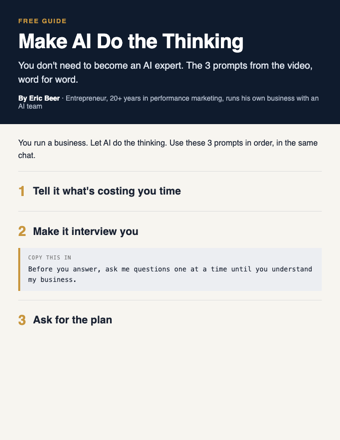
Cover of Make AI Do the Thinking
PromptsGetting startedChatGPT / Claude

Make AI Do the Thinking: the 3 prompts, word for word

You don't need to become an AI expert. Three copy-paste prompts: tell it what's costing you time, make it interview you, get the plan.

Get the guide →
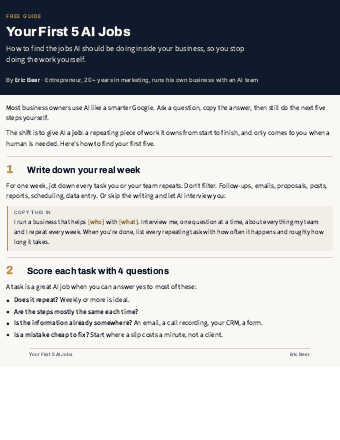
Cover of Your First 5 AI Jobs
AI agentsGetting startedAny AI

Your First 5 AI Jobs: stop doing the work AI should be doing

How to find the jobs AI should own inside your business, score them, and start with the one that saves you the most time.

Get the guide →
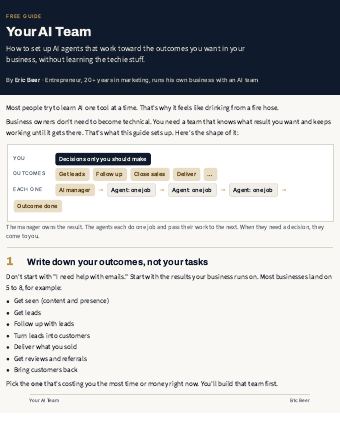
Cover of Your AI Team
AI agentsGetting startedAny AI

Your AI Team: set up AI agents that run your outcomes

The 7-step setup I use: outcomes, an AI manager for each, agents with one job, and decisions that come to you.

Get the guide →
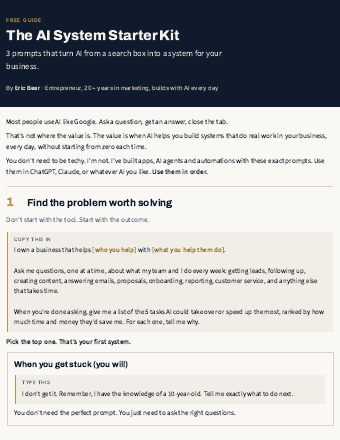
Cover of AI System Starter Kit
PromptsGetting startedChatGPT / Claude

The AI System Starter Kit: 3 prompts that turn AI into a system

Stop using AI like Google. Three copy-paste prompts to find the problem worth solving and get a step-by-step plan.

Get the guide →
new guides every week

See the library

Explore ericbeer.ai Join the waitlist

watch & learn

See how I put AI to work

Short videos on how I run my business with an AI team. Watch on whichever app you like.

My LinkedIn Got Hacked. I Let AI Rebuild the Whole Thing.

My LinkedIn Got Hacked. I Let AI Rebuild the Whole Thing.

Claude Can Now Find You a Job (Meet the AI Team)

Claude Can Now Find You a Job (Meet the AI Team)

Claude Rewrote My Whole LinkedIn With One Button

Claude Rewrote My Whole LinkedIn With One Button

AI Applied to 64 Jobs For Me (I Got an Interview Overnight)

AI Applied to 64 Jobs For Me (I Got an Interview Overnight)