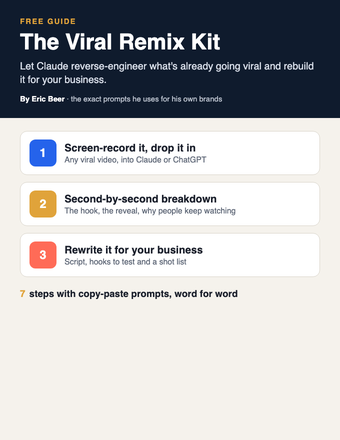
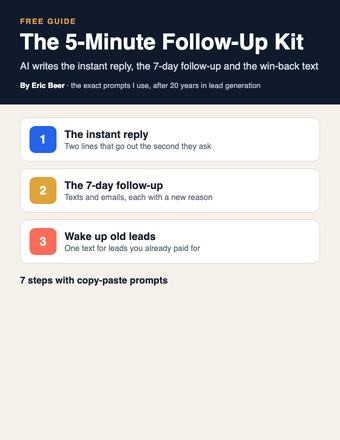
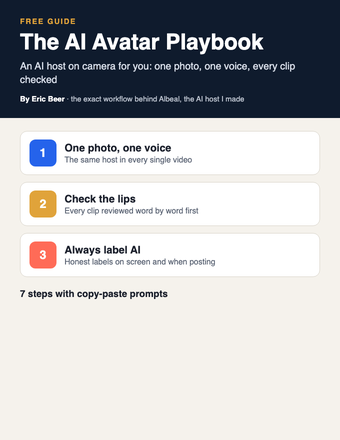
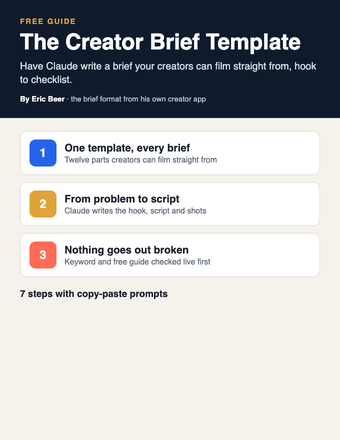
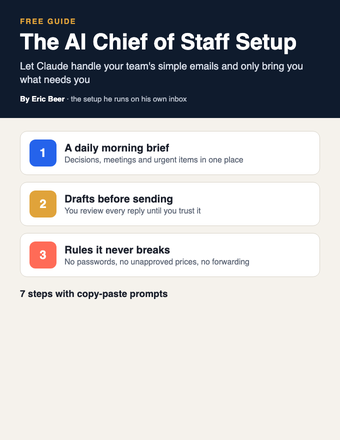
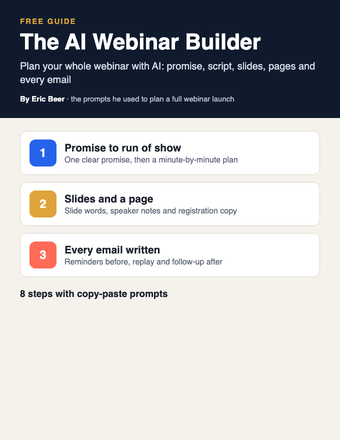
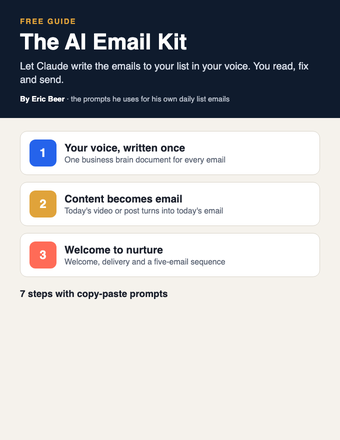
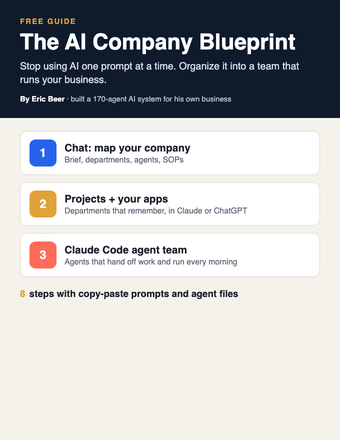
Want the complete guide?
The full guide, every other guide, the AI agents I use and live calls are going inside my community. Join the waitlist for the founding-member price.
Join the waitlist →Put Your Business Inside Claude: connect your tools and data so Claude can work in your business
Your customers already ask AI for help. So I put my business where they already are: inside Claude.
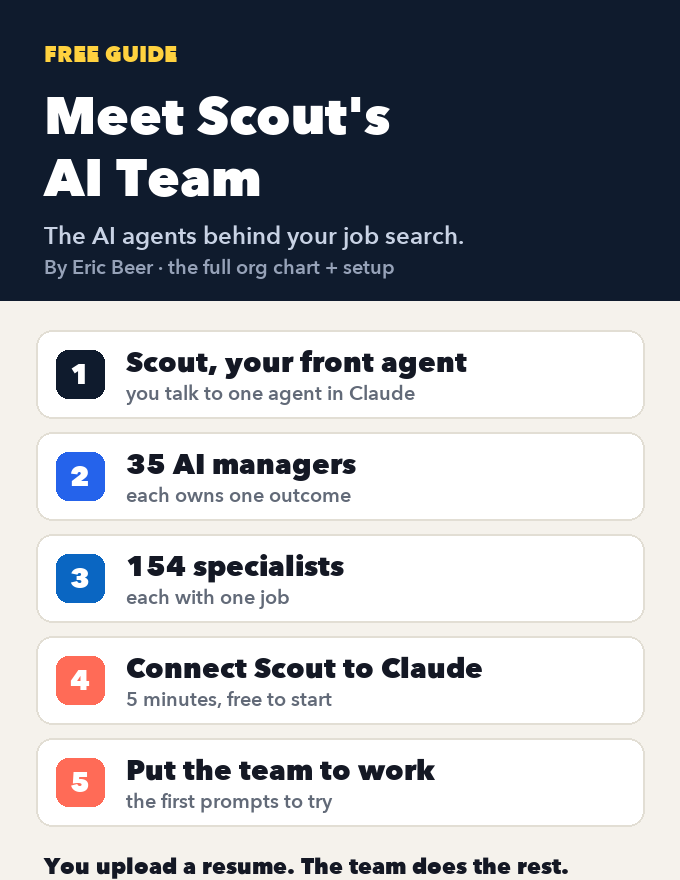
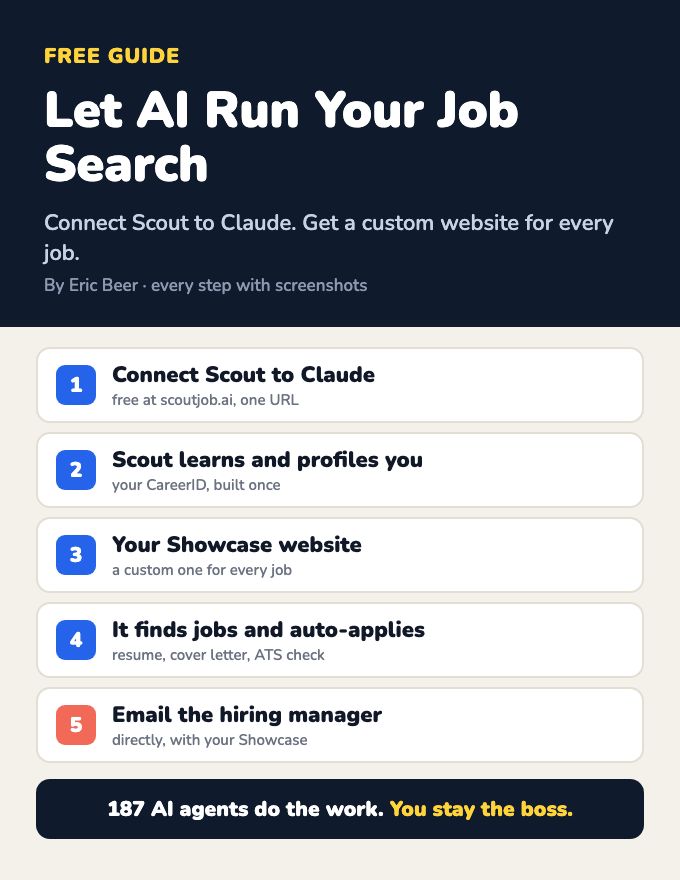
My company Scout Jobs runs inside Claude as a connector. People add it in about a minute: in Claude they go to Customize, then Connectors, then Add custom connector, paste the Scout URL and sign in. From then on, Claude can use Scout's tools right in the chat. Behind that one chat are Scout, 35 AI managers and 154 specialists that run a job search.
You don't need anything that big to start. This guide takes you up three levels: turn on connectors for the tools you already use, connect more of your tools through an automation service, and then, when you're ready, have Claude Code help you build a connector for your own business. Every step has the exact prompt. Each level works on its own, so stop wherever you like.
Step 1: Understand what a connector is (in plain words)
A connector lets Claude use your business's data and actions. Without one, Claude only knows what you paste into the chat. With one, Claude can look things up and do things in your tools, with your permission.
- Data means Claude can read: your calendar, your inbox, your files, your customer list.
- Actions means Claude can do: draft an email, create a calendar event, add a contact, update a deal.
Under the hood, connectors use a standard called MCP (Model Context Protocol). You don't need to understand it. Just know that when a service says it "offers an MCP connection" or "an MCP server," it means Claude can plug into it.
Plan rules, honestly: custom connectors (the kind where you paste a URL, like Scout) are available on paid Claude plans, and the Free plan has been more limited. Team and Enterprise accounts need an Owner to add them. These rules change, so check Claude's help center for the current version before you start. ChatGPT has its own connector rules and its own menus.
Step 2: List what you'd want Claude to do
Before you connect anything, decide what's worth connecting. Start a new chat in Claude and paste this.
The top of that list is where you start. Pick tasks where Claude mostly reads and drafts, not ones where it sends money or deletes things.
Step 3: Level 1, turn on connectors for tools you already use
Claude has a directory of ready-made connectors for popular tools like Gmail, Google Drive, Google Calendar, Notion and HubSpot, plus many more. This is the easiest win.
- Open Claude on your computer (the website or the desktop app).
- Click Customize, then Connectors. (In some versions it's under Settings, then Connectors.)
- Browse the directory and find a tool from your Step 2 list.
- Click Connect, sign in to that tool on its own page, and approve what it can access. Your password goes into the tool's page, never into the chat.
- In a chat, click the + button, open Connectors, and make sure the one you added is switched on.
Start with one or two. You can always add more.
Step 4: Put your connectors to work
Now try real work. Start with a read-only task, so you can see what Claude finds before you let it act.
About permissions: Claude asks before it uses a connector's tools, and you can decide per tool whether it should always ask, always be allowed, or never be used. Keep "ask" on for anything that sends, publishes, pays or deletes. Only switch read-only tools to always allow, once you trust them.
Step 5: Level 2, connect more tools through Zapier or Make
Your scheduling software, invoicing tool or industry app might not be in Claude's directory. Automation services like Zapier and Make already connect to thousands of apps, and both offer an MCP connection, which means Claude can use them as a bridge.
- In Zapier or Make, find their MCP option (the names and menus change, so search their help pages for "MCP").
- Choose exactly which actions Claude is allowed to use. For example: "find a customer in my invoicing tool" and "create a draft invoice." Keep the list short.
- The service gives you a connector URL. In Claude, go to Customize, then Connectors, then Add custom connector, paste the URL and sign in. It's the same steps people use to add Scout.
- Test it with a fake customer or a test record first.
Not sure which actions to turn on? Ask Claude.
Automation services often charge for their plans or count each action as a task, so check their pricing before you rely on it.
Step 6: Level 3, build a connector for your own business
This is what I did with Scout Jobs. If your business has its own data or service (a booking system, a price list, a customer portal, a database), you can give it a connector of its own. Then you, your team, and even your customers can add it to Claude the same way people add Scout.
You don't have to write the code yourself. Claude Code is Anthropic's coding tool, and it can build this with you step by step, or you can hand this prompt to a developer.
Go one tool at a time. A connector that does three things well beats one that does twenty things badly.
Step 7: A worked example, and the rules to keep
A quick example. Say you own a small plumbing company.
- Level 1: connect Gmail and Google Calendar. Every morning: "List new quote requests from yesterday, draft a reply to each, and suggest two open times for a site visit." The owner reads the drafts and sends them.
- Level 2: the company's job software isn't in Claude's directory, so it's connected through Zapier with two allowed actions: "find a job by customer name" and "add a note to a job." Now: "What's the status of the Garcia job, and add a note that they called."
- Level 3: the price list and service area live in a spreadsheet. Claude Code helps build a small read-only connector with two tools: "get the price range for a service" and "check if an address is in our area." The office team adds it to Claude and answers quote calls faster.
The rules:
- Start read-only. Add actions one at a time, after you trust it.
- Keep "ask before using" on for anything that sends, publishes, pays or deletes.
- Only connect what you need. Fewer tools means fewer mistakes.
- Test with fake data and a test record before real customers.
- Never paste passwords, API keys or customer card numbers into a chat.
- Only connect services you trust, and remove connectors you stop using.
- If customers will use your connector, make sure they can only see their own data, and tell them clearly what it does.
- Check Claude's help center for the current plan rules before you plan around them.
Unlock the full guide
- How Scout Jobs is set up as a connector, walked through on screen
- My Claude Code prompts for building and testing a connector, step by step
- Live build sessions: we connect your tools or plan your own connector together
- Every new AI workflow I build for my own businesses
Get this guide in full, every other guide, the AI agents I use, and live calls, inside my community.