Want the complete guide?

The full guide, every other guide, the AI agents I use and live calls are going inside my community. Join the waitlist for the founding-member price.

Join the waitlist →
your free guide

The AI Chief of Staff Setup: let Claude answer your team's simple emails and only bring you what needs you

If your team emails you all day with questions, you're the bottleneck in your own business. AI can take the simple ones and make sure you only see what actually needs you.

Here's what mine does. A Claude routine checks my email every few minutes for messages from my team. The simple questions, it answers in my voice. Anything only I can decide (money, a login, a decision) it sends me on Telegram in one line. And it has hard rules: it never sends passwords, never agrees to prices I haven't approved, and never forwards anything.

I didn't start there, and you shouldn't either. This guide builds it in safe stages: first a read-only morning brief, then drafts you send yourself, and only later (if you want) replies that send on their own for a short list of people. Claude is the main tool. ChatGPT has similar connectors and scheduled tasks, so the prompts work there too. What you can connect and schedule depends on your plan, so check what yours includes.

1

Step 1: Connect Claude to your email and calendar

In Claude, open Settings, then Connectors, and connect Gmail and Google Calendar (Microsoft 365 works if your plan offers it). Sign in yourself and approve the access on the Google or Microsoft screen. Claude can then read and search your mail and calendar when you ask.

Start by asking it to look, not act.

Copy this inSearch my email from the last 7 days for messages from these people on my team: [names or email addresses]. Sort them into three groups: 1. Simple questions you could answer from my notes or past replies. 2. Things that need a decision from me. 3. FYI only, no reply needed. Show me one line per email: who, what they want, and which group. Don't reply to anything and don't create drafts yet.

Check its sorting against what you would have done. This is how you find out what it gets right before you trust it with more.

2

Step 2: Get a morning brief

Copy this inYou are my chief of staff. Every time I ask for my morning brief, check my email and calendar and give me: 1. Today's calendar, one line per meeting, with anything I need to prepare. 2. The decisions only I can make today, one line each, with who is waiting. 3. Team questions you could answer from my notes, grouped, so I can approve answers in bulk. 4. Anything that looks urgent or upset. 5. Everything else, in one count (for example "14 FYI emails, nothing needed"). Keep it under 15 lines. Plain words. No email addresses or private details beyond what I need to act. My notes about the business: [paste or attach your FAQ, prices, processes, team list and who handles what]

Do this by hand for a few days. Each time it misses something, tell it, and add the fix to the instructions.

A quick example. A plumbing company owner has an office manager and three techs who email all day. The brief shows: two jobs to quote (a decision for the owner), four "what's the address for tomorrow" questions (answered in the job calendar), one upset customer (to the top), and "9 supplier emails, nothing needed." The owner spends five minutes on it instead of an hour in the inbox.

3

Step 3: Put the brief on a schedule

Once the brief is useful, stop asking for it. Claude can run scheduled tasks on some plans and apps (look for scheduled tasks or routines). ChatGPT has scheduled tasks too. Set it for the time you start your day.

Copy this inTurn the morning brief instructions above into a scheduled task. Run it every [weekday at 7:30am] in my time zone ([your time zone]). Read only. Do not reply to, draft, forward, label or delete anything. Send the brief to me [in this chat, or by email to myself]. Before you save it, show me the final instructions so I can check them.

If your plan doesn't have scheduling, keep running it by hand each morning. You still get most of the value.

4

Step 4: Write your rules block

This is the most important step. The rules are what make it safe to let AI touch your inbox at all. Copy this block, fill it in, and paste it at the top of every instruction you give your chief of staff from here on.

Copy this in (your rules block)MY RULES. Follow these every time, with no exceptions. Never: - Send, repeat or ask for passwords, codes, logins or card numbers. - Agree to a price, discount, refund or payment I haven't approved in writing in this list: [approved prices and terms, or "none"] - Forward any email or attachment to anyone. - Reply to anyone who is not on my approved list: [names and email addresses of your team] - Promise a date, a hire, a fire or anything legal. - Delete or archive anything. Always bring to me (one line, through [Telegram, text, Slack or email]): - Anything about money, contracts, logins, access or customers who are upset. - Any decision only the owner makes. - Anything you are not sure about. If in doubt, ask me. Don't guess. You may answer on your own: - Questions answered in my notes: [paste or link your FAQ, prices, processes, hours] - Scheduling questions using my calendar, without booking anything. - Simple thank-yous and holding replies like "Got it, I'll check and get back to you today." How I write: [short and friendly, plus 2 or 3 real replies you have sent your team]

Keep this block in one document. When something goes wrong, the fix goes here, so it never happens again.

5

Step 5: Let it draft replies, and you hit send

Now it can write, but nothing leaves your inbox without you. The Gmail connector can create drafts. You open your drafts, read each one, fix it if needed, and send it yourself.

Copy this in[paste your rules block] Check my email for unanswered messages from my approved team list from the last [24 hours]. For each simple question my notes answer: write a reply in my voice and save it as a draft. Do not send. For each item that needs me: don't draft. List it for me in one line. When you're done, give me a short list: drafts created (who and what), and items waiting on me.

Run this in drafts-only mode for weeks, not days. Keep a short note of every draft you had to change and why. When you're barely changing anything for a few weeks in a row, you know which kinds of questions it handles well. Those, and only those, are candidates for the next step.

6

Step 6: Set up your one-line alerts

The point is that you only see what needs you, wherever you are. Pick one channel you actually check: text, Telegram, Slack, or an email to yourself with a clear subject line. I use Telegram.

Getting a message to your phone is a one-time setup. Email to yourself is the simplest. For Telegram, Slack or text, you'd connect it through Claude Code or an automation tool like Zapier, Make or n8n.

Copy this inWhen something needs me, write the alert as one line in this format: [WHO] needs [WHAT] by [WHEN]. Reply with [THE OPTIONS]. Example: "Dana needs approval on the $850 water heater quote by 2pm. Reply yes, no, or call." Never include passwords, codes, full email threads or attachments in an alert. Send at most [one alert every 30 minutes] unless something is marked urgent by my rules.
Then copy this inHelp me send these alerts to my [Telegram, phone by text, Slack or email]. Walk me through the setup click by click, one step at a time, and wait for me to say "done" before the next step. I'm not technical. Then send me one test alert.
7

Step 7: Optional and advanced: let it answer a short list of senders

This is what I run now. Only do it after weeks of drafts where you've barely changed a thing. It needs a setup that can send email on a schedule, such as Claude Code running a routine with a mail connection, or an automation tool. The rules block does the heavy lifting.

Copy this in[paste your rules block] Every [10 minutes] during [8am to 6pm on weekdays], check for new emails from ONLY these senders: [2 or 3 team members]. You may send a reply on your own only if ALL of these are true: - The sender is on that list. - The answer is fully covered by my notes or by a reply I have approved before. - It does not touch money, prices, logins, access, customers, contracts or dates. Everything else: do not reply. Send me a one-line alert instead. Keep a log of every email you sent: time, who, the question, and your reply. Show it to me at the end of each day.

Read the daily log every day at first. Tell your team that some quick answers come from your assistant, and that anything important still comes to you.

Mistakes to avoid:

  • Starting with sending. Start read-only, then drafts, for weeks.
  • Letting it reply to anyone outside your team. Customers and vendors stay with you.
  • Vague rules. "Be careful with money" is not a rule. "Never agree to a price not on this list" is.
  • Never reading the log. You're still responsible for every email it sends.
the rest of this guide is inside the community

Unlock the full guide

  • My own chief of staff instructions and rules block, line by line
  • How I set up the Telegram alerts and the every-few-minutes routine
  • Ready-made briefs for owners, office managers and sales teams
  • Live sessions: we set up your morning brief together
  • Every new AI workflow I build for my own businesses

Get this guide in full, every other guide, the AI agents I use, and live calls, inside my community.
Founding members: $47 first month, then $97/month.
Join the waitlist

keep going

More free guides

Cover of Meet Scout's AI Team
AI agentsGetting startedClaude + Scout

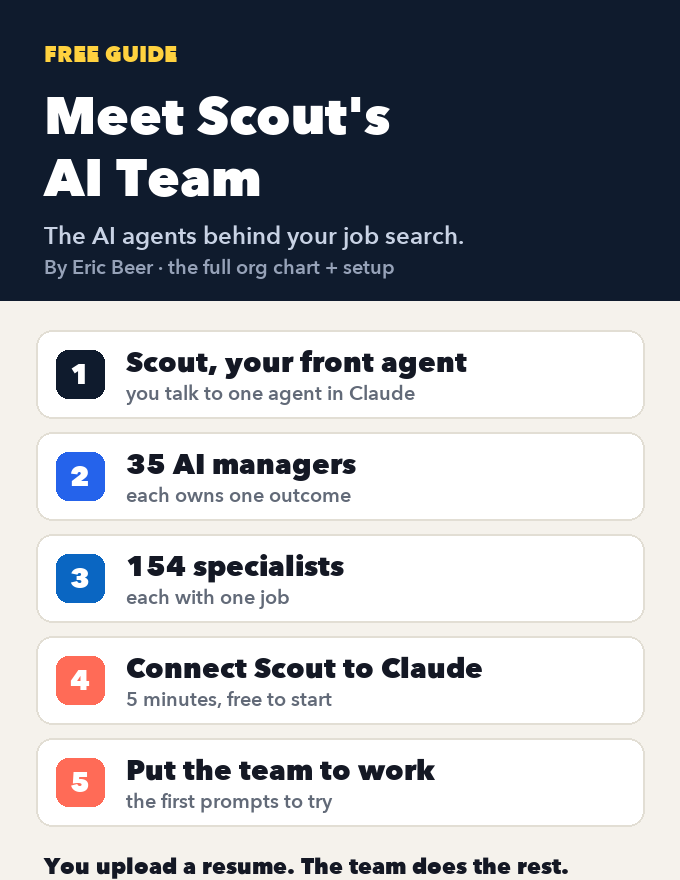
Meet Scout's AI team: the org chart of AI agents that runs a job search, and how to connect it to Claude

See every agent behind Scout Jobs: Scout at the top, 35 AI managers that each own one outcome, and the 154 specialists who do the work, each with one job. Then connect Scout to Claude, step by step, and put the team to work on your job search.

Get the guide →
Cover of Your AI Job Agent: Scout + Claude
AI agentsGetting startedClaude + Scout

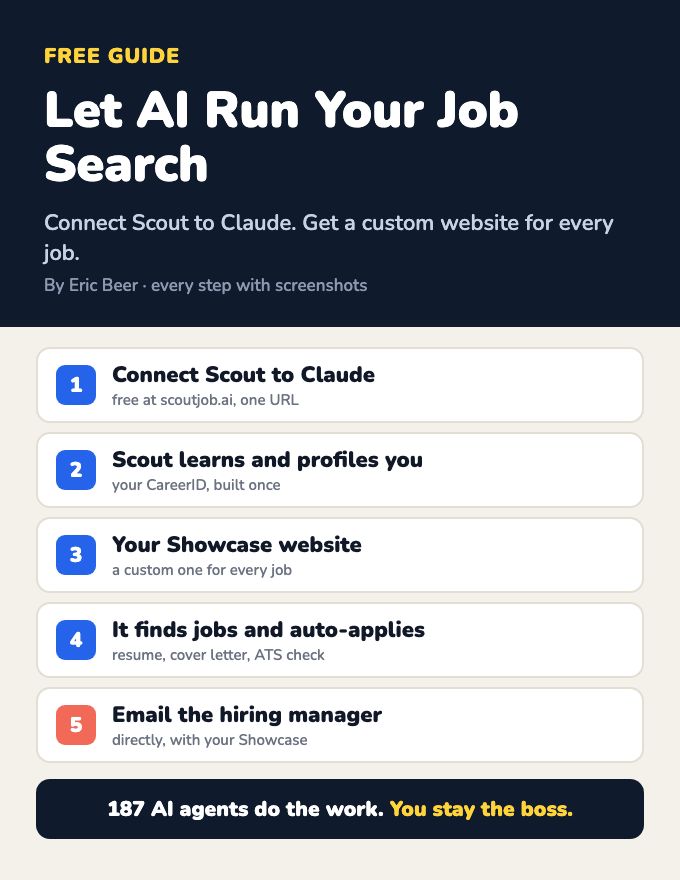
Let AI run your job search: connect Scout to Claude and get a custom website for every job

Connect Scout to Claude and a team of AI agents learns who you are, builds your CareerID and a Showcase website, finds jobs, makes a custom Showcase for each one, applies, and emails the hiring manager. Every step, with screenshots.

Get the guide →
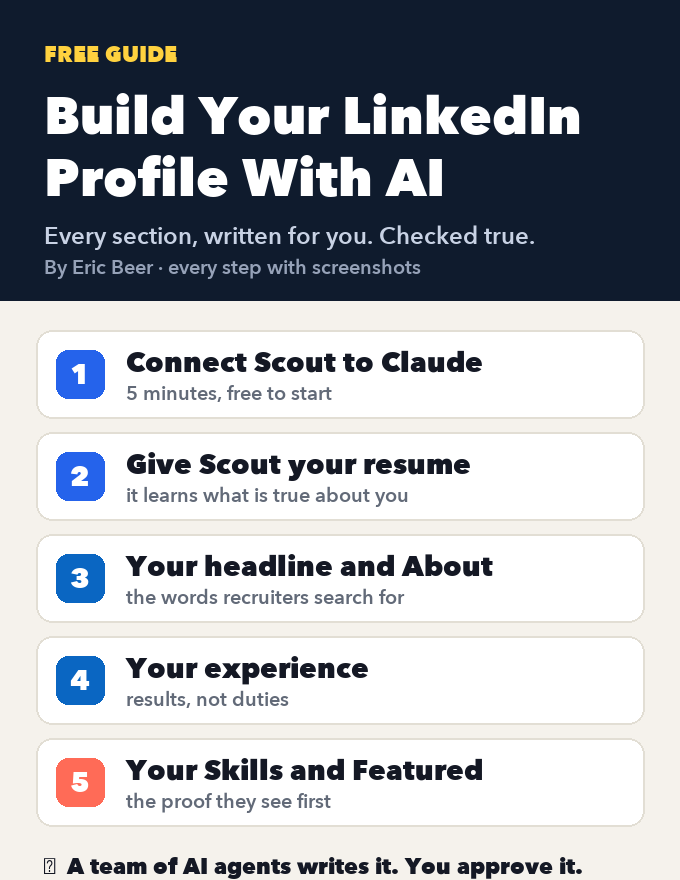
Cover of Build Your LinkedIn Profile With AI
AI agentsGetting startedClaude + Scout

Build your LinkedIn profile with AI: connect Scout to Claude and let it write every section

Create or fix your LinkedIn profile, section by section: headline, About, experience, Skills and Featured. Connect Scout to Claude, give it your resume, and AI agents write every section, checked against what's true. Every step with screenshots.

Get the guide →
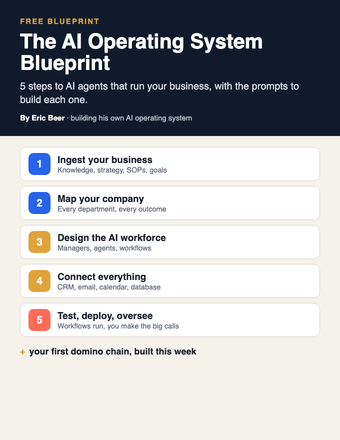
Cover of The AI Operating System Blueprint
AI agentsGetting startedClaude / ChatGPT

The AI Operating System Blueprint: 5 steps to AI agents that run your business

Ingest your business, map the company, design the AI workforce, connect your tools, then test and deploy. The 5 steps, with the prompts for each.

Get the guide →
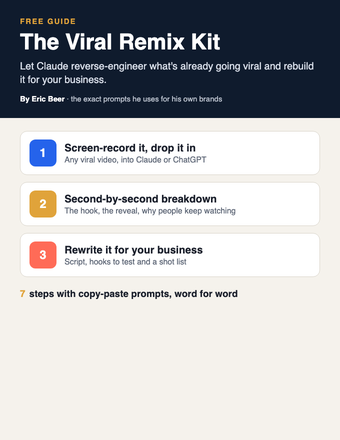
Cover of The Viral Remix Kit
PromptsGetting startedClaude / ChatGPT

The Viral Remix Kit: turn any viral video into one for your business with Claude

Stop coming up with content ideas from scratch. Have Claude reverse-engineer a video that's already going viral and rebuild it for your business.

Get the guide →
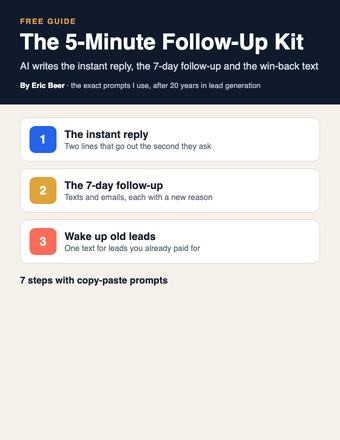
Cover of The 5-Minute Follow-Up Kit
PromptsGetting startedClaude / ChatGPT

The 5-Minute Follow-Up Kit: let AI write every follow-up so no lead goes cold

Whoever answers first usually wins. Have Claude write your instant reply, your 7-day follow-up and the win-back text for old leads, then load them into your CRM once.

Get the guide →
Cover of The Pain-to-Content Matrix
PromptsGetting startedClaude / ChatGPT

The Pain-to-Content Matrix: map every customer problem to a video brief with Claude

Stop guessing what to post. Have Claude map every stage of your customer's journey, the pain at each one, and a ready-to-film video brief for every pain.

Get the guide →
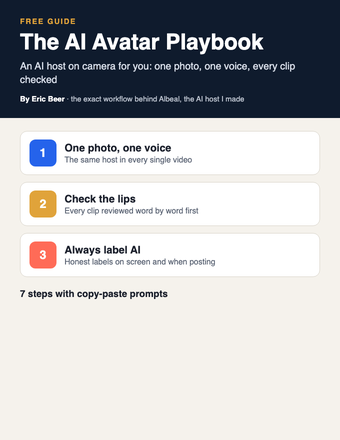
Cover of The AI Avatar Playbook
PromptsGetting startedClaude / ChatGPT + an AI video tool

The AI Avatar Playbook: put an AI host on camera for your business, the honest way

Stop filming every video yourself. Build an AI host with one photo and one voice, have Claude write the scripts, check the lips word by word and always label it AI.

Get the guide →
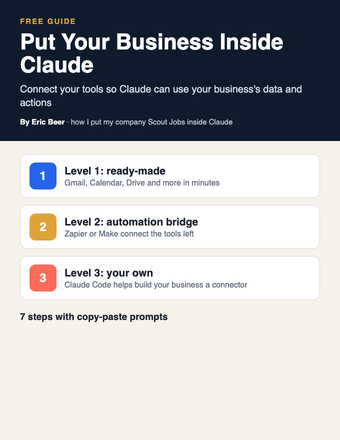
Cover of Put Your Business Inside Claude
AI agentsGetting startedClaude / Claude Code

Put Your Business Inside Claude: connect your tools and data so Claude can work in your business

My company Scout Jobs runs inside Claude as a connector. Here's how to connect your own tools in three levels, from one-click connectors to building your own with Claude Code.

Get the guide →
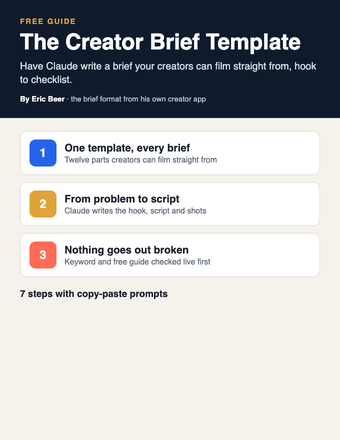
Cover of The Creator Brief Template
PromptsGetting startedClaude / ChatGPT

The Creator Brief Template: have Claude write a filmable brief for every creator and team member

Stop writing every script yourself. Have Claude turn one customer problem into a full brief your creators can film straight from, then check it before it goes out.

Get the guide →
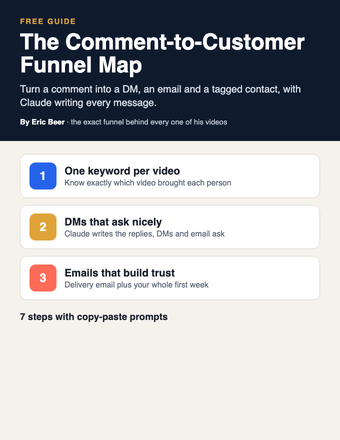
Cover of The Comment-to-Customer Funnel Map
PromptsGetting startedClaude / ChatGPT

The Comment-to-Customer Funnel Map: turn every video comment into an email subscriber with Claude

Turn comments into customers. Map the full path from comment keyword to DM, email, tag and daily email, with Claude writing every message.

Get the guide →
Cover of The SOP-to-Agent Kit
AI agentsPromptsClaude / ChatGPT

The SOP-to-Agent Kit: turn one written process into an AI agent that does the job your way

Stop being the bottleneck. Have Claude turn one of your processes into an agent in a Claude Project, test it, and fix it until it does the job your way.

Get the guide →
Cover of The Business Brain
Getting startedPromptsClaude / ChatGPT

The Business Brain: have Claude interview you and write the one document that teaches AI your business

Stop getting generic answers. Let Claude interview you, write one document about your business, and put it in a Project so every chat knows your business.

Get the guide →
Cover of Build Your Site With Claude
Getting startedPromptsClaude / Claude Code

Build Your Site With Claude: plan, write, build and publish your business website with AI

Stop paying someone every time your site needs a change. Decide the one job your site has, then have Claude plan, write and build it, connect the form to your CRM and put it live.

Get the guide →
Cover of The AI Webinar Builder
PromptsGetting startedClaude / ChatGPT

The AI Webinar Builder: plan your whole webinar with Claude, from the promise to the follow-up emails

Stop building webinars by hand. Use Claude to write the promise, the run of show, the slides, the registration page and every email, one piece at a time.

Get the guide →
Cover of The AI Email Kit
PromptsGetting startedClaude / ChatGPT

The AI Email Kit: have Claude write the emails to your list in your voice

Stop writing every email to your list yourself. Give Claude your voice once, then turn each video or post into an email and set up your welcome and follow-up emails.

Get the guide →
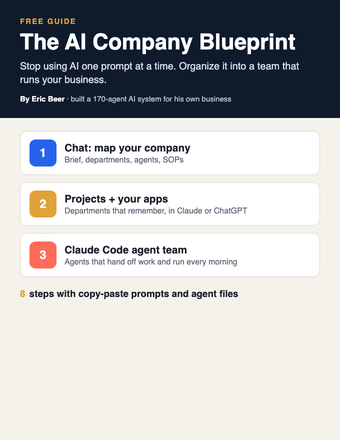
Cover of The AI Company Blueprint
AI agentsGetting startedClaude / ChatGPT / Claude Code

The AI Company Blueprint: organize AI into a team that runs your business

Stop using AI one prompt at a time. Map your company, write SOPs your agents follow, and build the team in Claude, ChatGPT or Claude Code.

Get the guide →
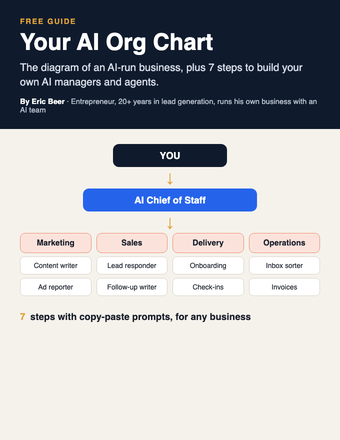
Cover of Your AI Org Chart
AI agentsGetting startedClaude / ChatGPT

Your AI Org Chart: the diagram, and how to build it for any business

The diagram of an AI-run business, plus 7 steps with copy-paste prompts to build your own AI managers and agents.

Get the guide →
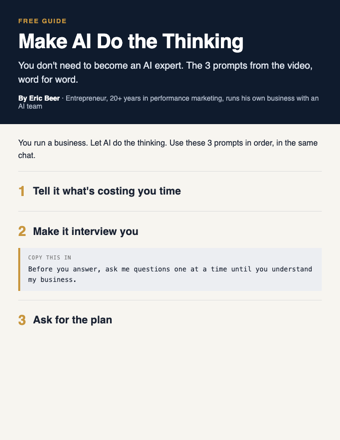
Cover of Make AI Do the Thinking
PromptsGetting startedChatGPT / Claude

Make AI Do the Thinking: the 3 prompts, word for word

You don't need to become an AI expert. Three copy-paste prompts: tell it what's costing you time, make it interview you, get the plan.

Get the guide →
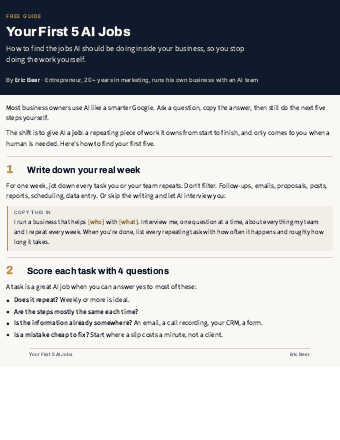
Cover of Your First 5 AI Jobs
AI agentsGetting startedAny AI

Your First 5 AI Jobs: stop doing the work AI should be doing

How to find the jobs AI should own inside your business, score them, and start with the one that saves you the most time.

Get the guide →
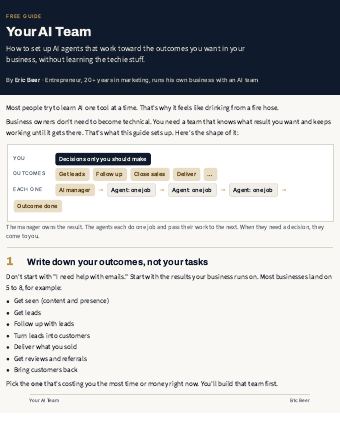
Cover of Your AI Team
AI agentsGetting startedAny AI

Your AI Team: set up AI agents that run your outcomes

The 7-step setup I use: outcomes, an AI manager for each, agents with one job, and decisions that come to you.

Get the guide →
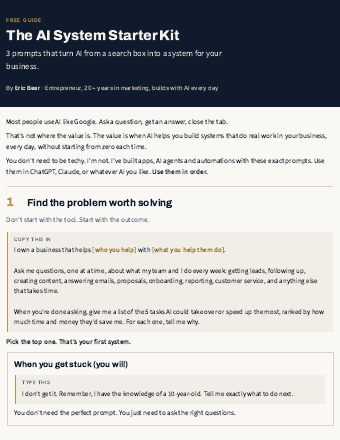
Cover of AI System Starter Kit
PromptsGetting startedChatGPT / Claude

The AI System Starter Kit: 3 prompts that turn AI into a system

Stop using AI like Google. Three copy-paste prompts to find the problem worth solving and get a step-by-step plan.

Get the guide →
new guides every week

See the library

Explore ericbeer.ai Join the waitlist

watch & learn

See how I put AI to work

Short videos on how I run my business with an AI team. Watch on whichever app you like.

My LinkedIn Got Hacked. I Let AI Rebuild the Whole Thing.

My LinkedIn Got Hacked. I Let AI Rebuild the Whole Thing.

Claude Can Now Find You a Job (Meet the AI Team)

Claude Can Now Find You a Job (Meet the AI Team)

Claude Rewrote My Whole LinkedIn With One Button

Claude Rewrote My Whole LinkedIn With One Button

AI Applied to 64 Jobs For Me (I Got an Interview Overnight)

AI Applied to 64 Jobs For Me (I Got an Interview Overnight)