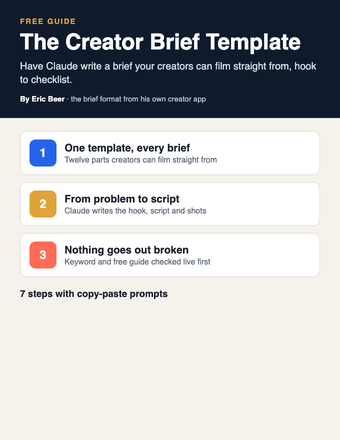
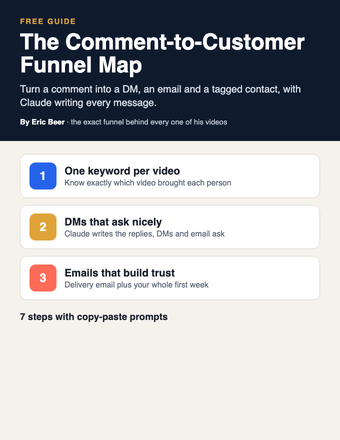
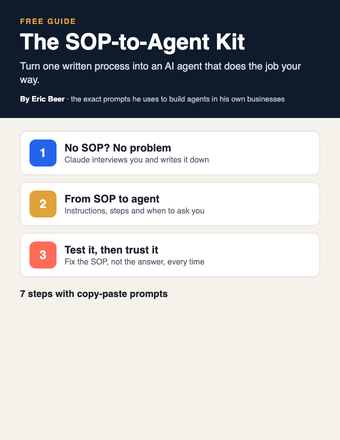
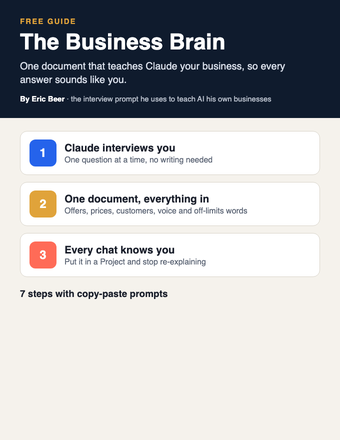
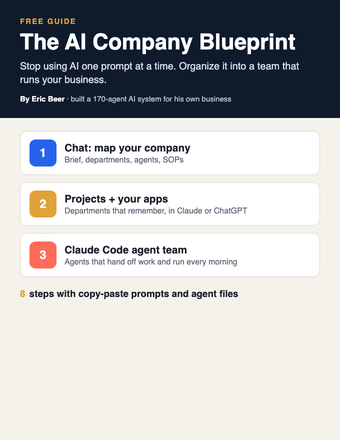
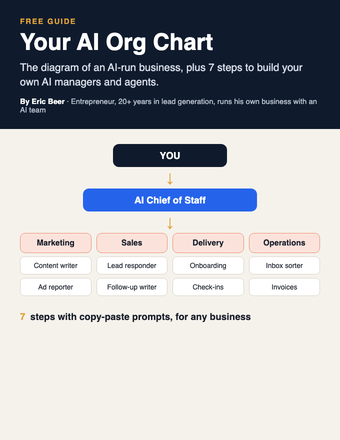
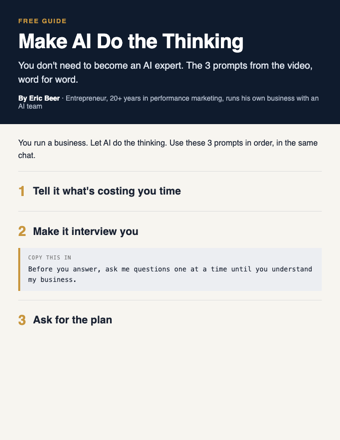
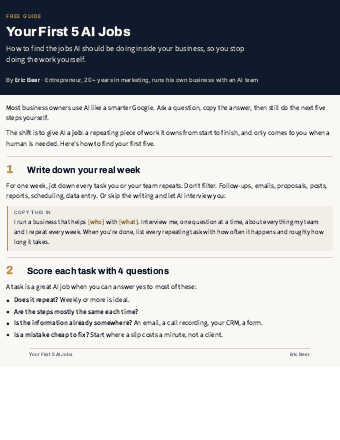
Want the complete guide?
The full guide, every other guide, the AI agents I use and live calls are going inside my community. Join the waitlist for the founding-member price.
Join the waitlist →The AI Avatar Playbook: put an AI host on camera for your business, the honest way
Tired of filming every video yourself? An AI host can be on camera for you. You give an AI video tool one photo, one voice and a script, and it makes a talking video.
I made one. Albeal is the AI host for Career Report. Albeal has one photo and one voice, kept the same in every video. I used Higgsfield, but plenty of AI video tools do this, and you don't need any one in particular. What matters is the workflow: Claude writes the host's profile and every script, every clip gets checked word by word so the lips match, and every video is labeled as AI.
This guide gives you all of it, including what my test cost and the rules that keep your audience's trust. Claude is the main tool, and every prompt works the same in ChatGPT.
Step 1: Decide who your host is, and what it never says
A host with a clear job is easier to script and easier to trust. Write the profile first.
Pick a name and save the profile in a note. You'll paste it into Claude every time you write a script.
Why the "never" list matters: an AI host hasn't done anything. It didn't use your service, didn't get results and isn't a customer. If a script has the host say "this changed my life," that's a fake testimonial, even if a real customer said something like it. Real results come from real people, on camera as themselves, with their permission.
Step 2: Lock one photo and one voice
This is what makes the host feel like the same person every time.
- Choose one reference photo: well lit, facing the camera, plain background. Save it in a folder called "Host." Use that exact file every time.
- Choose one voice. Write down the exact voice name and settings.
- Never swap either one between videos. Small changes make the host feel like a stranger.
- Only use a face and a voice you have the right to use: an AI-generated face, your own face or voice, or one your tool gives you the rights to use. Never copy a real person who hasn't agreed to it.
Step 3: Write the script with Claude
Keep scripts short. Short sentences help the lips match the words, because the tool has less to get wrong.
Read it out loud. If you stumble on a sentence, the voice tool probably will too. Ask Claude to simplify that line.
Step 4: Fix hard words, then make one test clip
Now upload your photo, pick your saved voice, paste the script and generate one clip. Don't batch ten yet. One test tells you whether the photo, voice and script work together before you spend more.
Budget honestly. Most AI video tools charge in credits. My test with Albeal used about 150 video credits. Your number will be different: credits vary by tool, by plan and by clip length, and failed clips you regenerate cost credits too. Check the credit cost per clip before you start, and write down what each clip actually used.
Step 5: Check the lips word by word
This is the step people skip, and viewers notice fast. Every clip gets checked word by word before it's posted. Play it slowly with headphones on and compare what you hear to the script. Look for:
- Lips closing on "b," "p" and "m" sounds.
- A mouth that stays open after the voice stops.
- Words where the mouth moves with no sound, or the other way round.
- Odd blinks, head jumps or a face that shifts between frames.
If a line fails, a shorter sentence or different punctuation often fixes it.
Step 6: Label it AI, every time
No exceptions. Labeling protects your audience's trust, and Instagram and TikTok expect it.
- On the post screen: Instagram and TikTok both have an AI label setting when you post. Turn it on for every AI host video. The menus move around, so if you don't see it, look under the advanced or "more options" settings before you post.
- On screen: a short text label such as "AI host" for the whole video.
- In the video or the caption: one plain line, such as "I'm the AI host for [your business]."
- Never present the host as a real employee, a real customer or a real person.
Step 7: Post, review, and the mistakes to skip
A few days after posting, paste what you can see into Claude.
A quick example. A home-cleaning company creates "Mia," whose job is one cleaning tip per video. Her "never" list: no "I clean my own house this way," no customer stories, no promises. Her script on shower glass opens with "Hi, I'm Mia, the AI host for Bright Home Cleaning," gives one tip (wipe the glass after every shower), and ends with "Follow for more tips." In the lip check, "squeegee" looks off, so Claude swaps it for "a glass wiper" and that one clip is regenerated. "AI host" stays on screen the whole time, and the AI label is switched on when she posts. When the company wants proof, it films a real customer, as themselves, with permission.
Common mistakes:
- Changing the photo or voice between videos.
- Long, complicated sentences. More lip-sync problems.
- Skipping the word-by-word check.
- Generating lots of clips before testing one.
- Letting the host claim results, experience or testimonials.
- Forgetting the AI label on the post screen.
- Using a face or voice you don't have the rights to.
Start small: one host, one photo, one voice, one clip. Get that working before anything else.
Unlock the full guide
- My host profile and consistency sheet for Albeal, ready to copy
- The script and lip-sync review prompts I run on every clip
- Live sessions: we build your AI host and check your first clip together
- Every new AI workflow I build for my own businesses
Get this guide in full, every other guide, the AI agents I use, and live calls, inside my community.